The key points
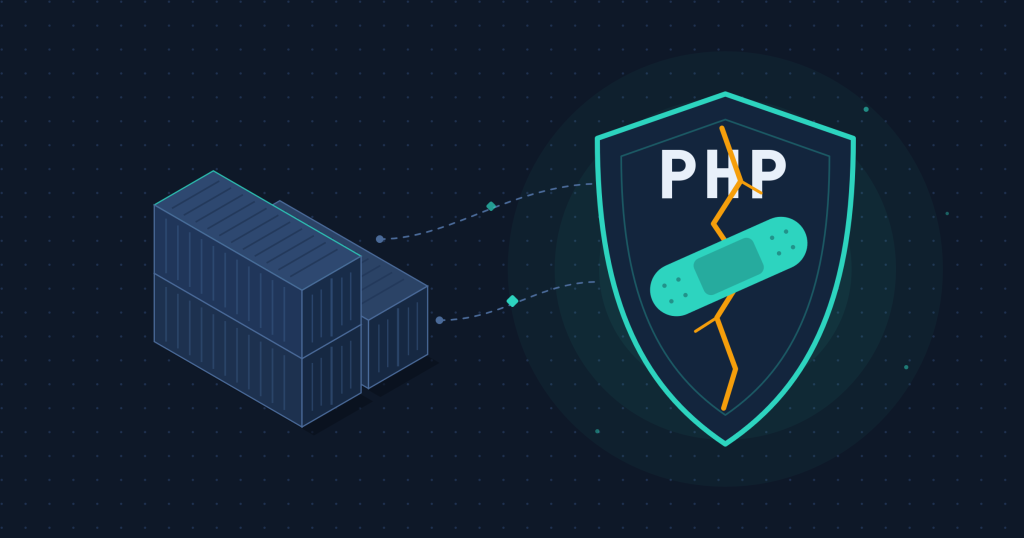
On 21 October 2026, the PHP project fixed a critical PHP vulnerability – two flaws, in fact. They allow attackers to run their own code on a web server without needing a password. Practically every WordPress website is affected until its PHP version is updated.
- Safe versions: PHP 8.2.35, 8.3.36, 8.4.27 and 8.5.12 or newer.
- If I look after your website, I will take care of the update. You don’t need to do anything.
- If your website is with a web host, check your PHP version and ask your host if in doubt.
- If you run WordPress yourself with Docker, you’ll find a step-by-step guide below.
What happened?
On 21 October, the PHP team released updates for all supported PHP versions (security advisory on php.net). They fix two flaws identified as CVE-2026-109618 and CVE-2026-109619. Both are rated 9.2 out of 10, which makes them critical.
PHP is the programming language WordPress is written in. Every page view on your website is processed by PHP. That processing is exactly where the two flaws are:
- Flaw 1: If PHP runs out of memory while handling a request, it stops halfway through its preparation. During the clean-up that follows, PHP treats the half-finished data as if it were valid.
- Flaw 2: Leftovers from an earlier request can stay behind in memory. The next request may then use this stale data – a bit like a cashier who accidentally carries on with the previous customer’s shopping list.
Attackers can trigger both flaws deliberately. They need neither a user account nor login details.
Servers that run PHP as an Apache module (mod_php) are most at risk. For this setup, an attack has been demonstrated that strikes before WordPress even starts. Security plugins inside WordPress therefore can’t stop it.
Am I affected by the PHP vulnerability?
Any website whose PHP version is older than the fixed release of its branch is affected. The table shows which version you need to be protected:
| PHP version | Protected from | Security updates until |
|---|---|---|
| 8.5 | 8.5.12 | 31 Dec 2029 |
| 8.4 | 8.4.27 | 31 Dec 2028 |
| 8.3 | 8.3.36 | 31 Dec 2027 |
| 8.2 | 8.2.35 | 31 Dec 2026 |
| 8.1 and older | no update from the PHP project | already ended |
Sources: php.net, ma.ttias.be
How to find your PHP version: Log in to WordPress and open Tools → Site Health → Info. The PHP version is listed in the Server section.
One thing to note: some Linux distributions such as Ubuntu include the fix but keep the old version number. If your host shows an older number, ask them whether the fix is included.
PHP 8.1 and older no longer receive a fix from the PHP project. If your website still runs on one of these versions, it should be moved to a current version now.
What you should do now
What you need to do depends on where your website runs.
I look after your website: I’m updating PHP on all servers I manage and checking every website afterwards. You don’t need to do anything.
Your website is with a web host (shared hosting): Your host installs the update. Check in your customer panel that at least PHP 8.2 is selected. If WordPress still shows an unprotected version afterwards, contact your host’s support.
You run your own server: You need to update it yourself and then restart the right services. If PHP runs as an Apache module, simply reloading Apache is not enough. Only a full restart loads the new version (tested by Mattias Geniar).
If you run WordPress in Docker, follow the guide below.
Guide: how to update WordPress in Docker
Since the evening of 21 October, the official WordPress images on Docker Hub include the fixed PHP versions. Your content – posts, images and plugins – lives in volumes and is kept during the update.
Important: a docker restart or docker compose down followed by up is not enough. Docker then simply restarts the same old container contents. Only a freshly pulled or rebuilt image brings the new PHP version.
Step 1: Make a backup. Back up the database and the wp-content folder, for example with your backup plugin or a server snapshot.
Step 2: Find out where your WordPress image comes from. Open your website’s docker-compose.yml and look at the WordPress service.
- If it says
image:with an official image such aswordpress:php8.3-apache, follow step 3. - If it shows your own image name or
build:, you have your own Dockerfile. In that case, follow step 4.
Step 3: Pull the official image again. Go to your website’s folder and run:
cd /path/to/your/website
docker compose pull
docker compose up -d
pull downloads the current image. up -d detects the new image and recreates the WordPress container with it. The database simply keeps running.
Step 4: Rebuild your own image. Go to the folder containing your Dockerfile, rebuild, and then recreate the container:
cd /path/to/your/dockerfile
docker build --pull -t my-wordpress:latest .
cd /path/to/your/website
docker compose up -d
The key part is --pull. Without it, Docker uses the old base image from its cache and the PHP version stays the same. If your compose file contains build:, use docker compose build --pull followed by docker compose up -d instead.
Step 5: Check the result.
docker compose exec wordpress php -v
Replace wordpress with the name of your service. The output must show a version from the table above, for example PHP 8.3.36. You can also see the version in WordPress under Tools → Site Health → Info.
Step 6: Clean up. The command docker image prune removes old images that no container uses any more.
Step 7: Find other PHP applications. If other programs on your server use PHP, such as invoicing software, they need new images too. This command lists all running containers that contain PHP, along with their version:
for c in $(docker ps --format '{{.Names}}'); do
  v=$(docker exec "$c" php -r 'echo PHP_VERSION;' 2>/dev/null) && echo "$c: $v"
done
For ready-made images from other vendors, you’ll have to wait until they publish a new version. After that, run docker compose pull and docker compose up -d in the relevant folder.
If you can’t update yet
Only an update closes the vulnerability completely. Until then, the PHP team recommends a few settings that make known attack paths harder (php.net):
session.upload_progress.enabled = 0
post_max_size = 32M
upload_max_filesize = 30M
session.upload_progress.enabled = 0switches off a feature WordPress doesn’t need. It was one of the confirmed attack paths.- Lower upload limits make the memory-based attack harder. If your website doesn’t need uploads at all, the PHP team even recommends 8M for
post_max_size.
In Docker, put these lines in an .ini file under /usr/local/etc/php/conf.d/ and then recreate the container. After the update, you can raise the upload limits again. The upload progress setting can stay switched off permanently.
Conclusion: updates are a must, not a nice-to-have
This PHP vulnerability shows why regular updates matter – not just for WordPress and plugins, but also for the software underneath. As an IT service provider, I often see Docker-based websites running on an outdated PHP version for months. The reason: containers get restarted, but never rebuilt.
Not sure which PHP version your website uses, or would you rather not do the update yourself? Get in touch. I’ll check your website, install the update and, if you like, look after your servers on an ongoing basis.
Tom Commander, IT-Service-Commander
Sources: PHP project security advisory, 21 October 2026 · Mattias Geniar: PHP CVE-2026-109618 and CVE-2026-109619 – how to apply the patches
Transparency note: This article was written by me.
AI was used for language editing. I am responsible for the content.